JavaScript is currently not supported/disabled by this browser. Please enable JavaScript for full functionality.
Loading...
CATEGORY : QZ product help pages
Self-help and basic troubleshooting inputs on QZ products

Two cables short of a workstation. The QZ USB 4.0 lineup, explained.

Published On 05/02/2026 11:26 AM by QZ Support
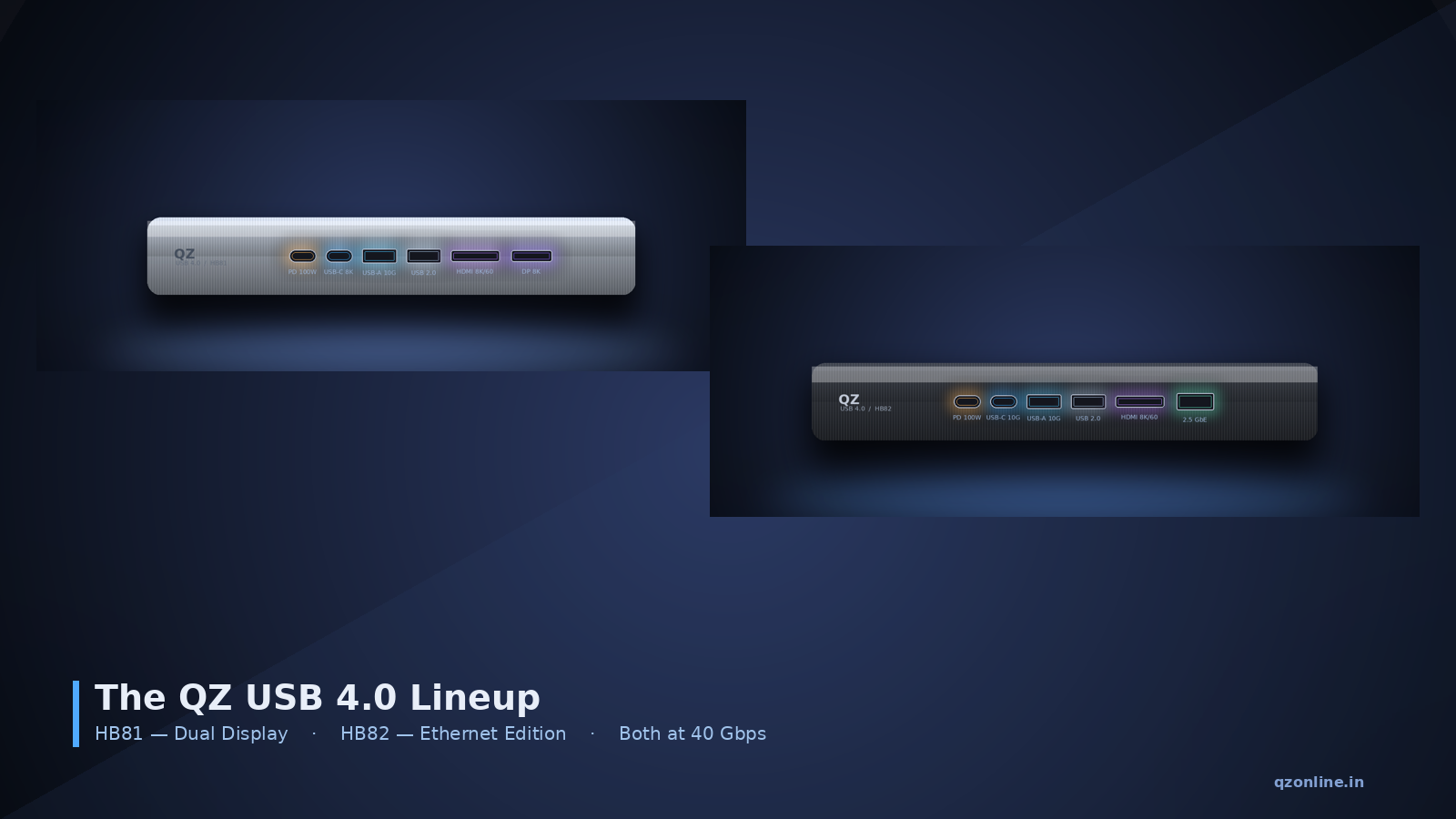
QZ-HB81 for creators who live across two displays. QZ-HB82 for desks that need fast wired networking. Both built on the full 40 Gbps USB 4.0 spec. Plug a single USB-C cable into your laptop. On the other end, an 8K monitor lights up. A second display picks up alongside it. An external NVMe drive mounts at full speed. Your laptop charges at 85 watts. Your keyboard, mouse, and webcam come along for the ride. Or — same cable, different hub — you skip the second display and pull a 2.5 Gbps wired network connection instead. Lower latency.... Read more
This entry was posted in USB-C Hub

How to extend display on MacBook Pro or MacBook Max with M3/M4 Chip?

Published On 09/25/2025 12:00 PM by QZ Support Note: The M3/M4 Pro or M3/M4 Max chip supports connecting up to four external monitors. The standard M3/M4 chip only supports a single external monitor. Check the display mode Go to System Preferences, click Displays, and then click Arrangement. Make sure the Mirror Displays box is not checked. Also, confirm that the display mode is set to Extend these displays.  Check the connection Make sure the cable is securely connected to the correct port on your Mac. You can also try unplugging and replugging the display.  Connect directly... Read more

How to solve video flickering problem?

Published On 03/20/2025 4:33 PM by QZ Support To solve a flickering screen problem, try updating your display drivers, adjusting the refresh rate, ensuring cables are secure, and disabling unnecessary background programs or hardware acceleration.  Here's a more detailed breakdown of troubleshooting steps: 1. Update Display Drivers: Device Manager: Open Device Manager (search for it in the Windows search bar) and navigate to "Display Adapters".  Update Drivers: Right-click on your graphics card and select "Update driver".  Manufacturer's Website: You can also visit the... Read more
This entry was posted in USB-Video Adapters

How to check if your phone, laptop can stream video over its USB Type C port?

Published On 06/16/2022 12:02 PM by QZ Support Not all USB Type C ports are same. USB-C port is just a connector shape. An USB-C port belongs to a specific USB version (USB 2.0, 3.0, 3.1, 3.2) and hence has predefined features and capabilities. Only USB-C port with USB 3.1 or above version can stream video. USB 3.1 or above versions support DP Alt Mode feature. This feature enables them to stream video signal.  You need to confirm if your device's USB Type C port is with USB 3.1 or above version before trying USB Type C to HDMI/VGA applications. To do this, check your device's... Read more